



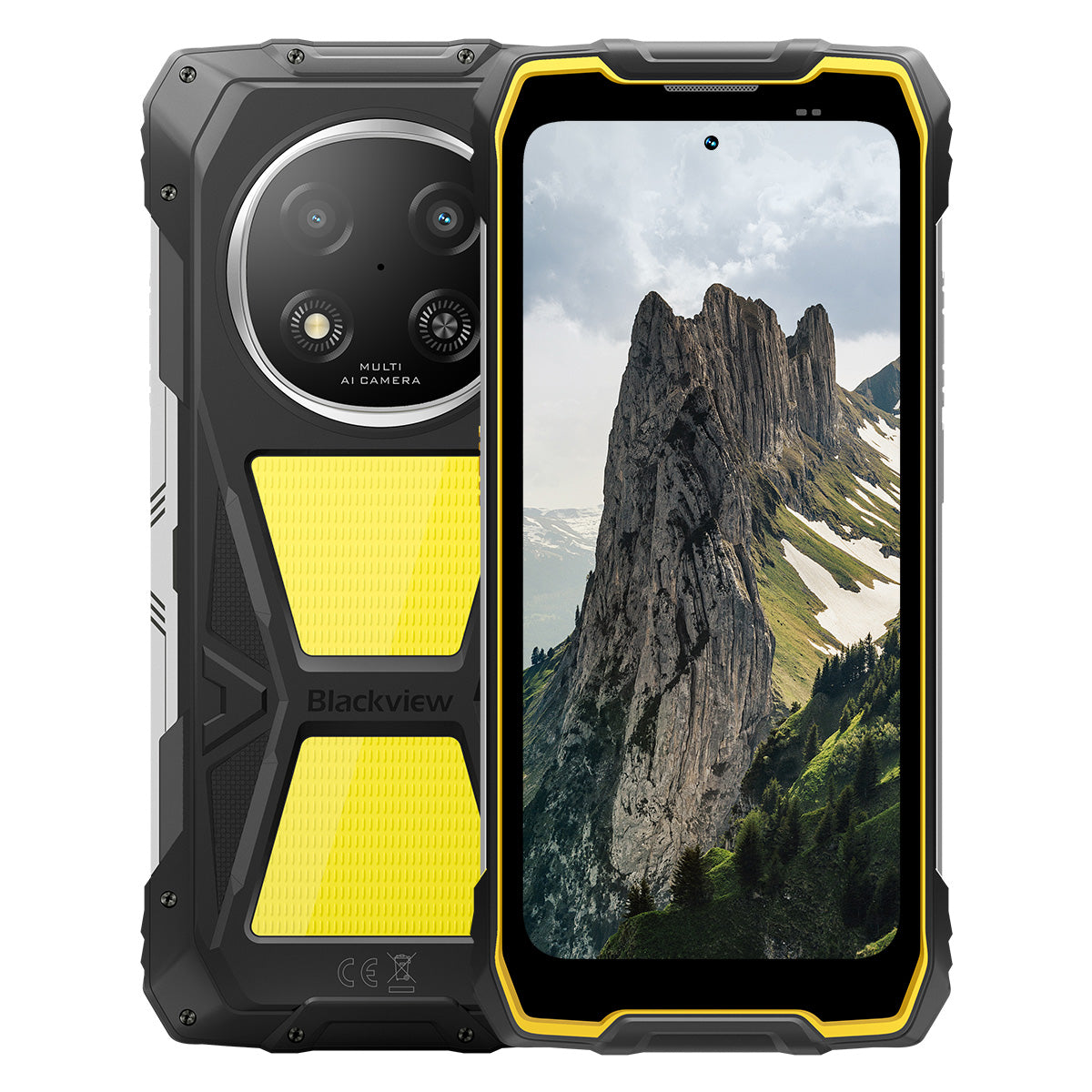


블랙뷰 ROCK 2 Pro 6.67인치 120헤르츠 화면 400루멘 야영등 15000밀리암페어시 5세대 견고한 전화기

재고 없음
하이라이트
하이라이트
✔6.67인치 120Hz 스마트 새로고침률 화면
✔내장 듀얼 400루멘 캠핑 등
✔5G 6나노 UNISOC T8100 팔코어 처리기
✔15000mAh 및 33W 급속 충전
✔1600만 화소 인공지능 후면 + 1300만 화소 인공지능 전면 카메라
✔IP68, IP69K 및 군용 표준 MIL-STD-810H 인증
정보
정보
Blackview ROCK 2 Pro는 까다로운 환경에서 신뢰할 수 있는 모바일 성능이 필요한 사용자를 위해 설계되었습니다. 6.67인치 120Hz 디스플레이와 UNISOC T8100 5G 성능, 15000mAh 배터리 및 33W 고속 충전을 결합하여 업무, 여행, 내비게이션 및 야외 활동에 적합합니다. 주요 현장용 기능으로는 16MP 후면 및 13MP 전면 AI 카메라, 듀얼 400LM 캠핑 라이트, IP68 & IP69K & MIL-STD-810H 방수·방진·내구성 보호가 포함되어 있습니다. 작업 현장, 원격 여행 및 일상적인 강인함을 위해 설계되어 일반 휴대폰으로는 부족할 때도 사용자가 연결 상태를 유지하고 세부 사항을 포착하며 계속 나아갈 수 있는 자신감을 제공합니다.
브랜드 소개
브랜드 소개
Blackview는 훌륭한 기술이 단순한 사양을 넘어야 한다고 믿습니다. 실제 생활에 맞고, 실제 문제를 해결하며, 가장 중요한 순간에 신뢰할 수 있어야 합니다.
Blackview는 처음에 혹독한 환경을 위한 견고한 휴대폰으로 시작했습니다. 오늘날에는 스마트폰, 태블릿, 노트북, 스마트워치, 오디오 제품 등 더 넓은 스마트 기기 생태계를 제공합니다.
모든 카테고리에서 우리의 초점은 변함없습니다: 내구성 있는 품질, 실용적인 혁신, 그리고 합리적인 가격. 우리는 처음부터 믿음직스러운 제품을 설계합니다.
고객이 가장 중요하게 여기는 것은 무엇인지 이해합니다: 부드러운 성능, 오래가는 신뢰성, 유용한 기능, 그리고 불필요한 비용 없이 일상을 더 편리하게 만드는 기술입니다.
그래서 Blackview는 제품 테스트, 사용자 경험, 그리고 업무, 여행, 창작, 야외 탐험, 일상적인 연결에 의미 있는 가치를 제공하는 기능에 진정한 관심을 기울입니다.
Blackview는 신뢰할 수 있는 기술을 원하는 사람들을 위해 만들어졌습니다: 현대 생활을 따라갈 수 있는 스마트하고 유능한 기기입니다.
설계부터 신뢰할 수 있고, 본질적으로 실용적이며, 실제 생활을 위해 만들어졌습니다.
배송 및 반품
배송 및 반품
• 배송: 주문은 영업일 기준 1~2일 이내에 처리됩니다. 표준 배송은 위치에 따라 영업일 기준 3~7일이 소요됩니다.
• 반품: 주문을 받은 날로부터 30일 이내에 제품을 반품하거나 교환할 수 있습니다. 상품은 구매 증빙과 함께 원래 상태여야 합니다.
제품에 제조상의 결함이나 손상이 있을 경우 추가 비용 없이 기꺼이 교환해 드립니다.

더 빠른 5G, 더 밝은 조명, 멈출 수 없는 파워
한계를 넘어 모든 도전을 정복하세요


왜 Blackview ROCK 2 Pro를 선택해야 할까요?

No.1
IP69K, IP68 & MIL-STD-810H 인증,
어떤 극한도 정복하도록 제작됨.

No.2
6nm UNISOC T8100으로 빠른 5G,
비할 데 없는 속도를 경험하세요
부드럽고 놀라운 화면
수일간 대기.
어디서나
2.0, 한계를 넘어선 지능
안드로이드 16 기반
No.1
IP69K, IP68 & MIL-STD-810H 인증,
어떤 극한도 정복하도록 제작됨.

400루멘 캠핑 라이트
밝고 조절 가능하며 신뢰할 수 있는 — 캠프를 밝히고 모든 야외 모험에서 안전을 보장하도록 설계되었습니다.

조명 모드세 가지 밝기 수준:낮음/높음/초고휘도
절전용 낮음, 다용도 야외 조명용 높음 및 초고휘도.

야외 캠핑

야외 수리

야간 하이킹

SOS 모드
중요한 야외 상황에서 안전을 보장하는 명확하고 눈에 띄는 조난 신호를 보냅니다.

야생에서 길 잃음

차량 고장

악천후 조난

빠른 깜빡임 모드
긴급 경고, 잠재적 위협 억제, 빠른 주목 유도에 이상적입니다.

야외 방어

도로변 경고

긴급 대피

잠수. 분사. 담금. 문제없이 작동합니다.
IP69K & IP68 인증
ROCK 2 Pro는 가장 혹독한 환경을 위해 설계되었습니다 물, 먼지, 고압 제트에 대한 탁월한 보호를 제공합니다.


완벽한 화면 밀봉: 흠 없는
방수 성능.

부식 방지 알루미늄 버튼:
프리미엄 실리콘 씰로 보강됨.

TPU 밀봉 USB 포트: 최대 방진
방수 및 내수성.

수중 카메라: 잊지 못할 순간을 담아냅니다
수면 아래 순간들을 포착하세요.

스피커 청소: 자동으로 물과 이물질 배출
깨끗한 오디오를 위한 이물질 제거.

낙하 방지. 방진. 전투 준비 완료.
MIL-STD-810H 인증
-20°C 북극 지역부터 60°C 사막 열기, 1.2m 콘크리트 낙하부터 모래 폭풍까지 — ROCK 2 Pro는 다른 제품이 실패하는 곳에서도 견뎌냅니다.

이 극한 테스트를 통과했습니다

비

모래와 먼지

진동

충격

습도

고도

가속도

고온

저온

침수

보강된 고무 모서리:
최고의 충격 흡수력.

초내구성 복합 소재 후면:
견고하게 제작되었습니다.

항공 등급 알루미늄 프레임:
강하고 가벼우며 충격에 강합니다.

판다 글래스 디스플레이: 긁힘 방지 및
최고의 내구성을 위한 파손 방지.
장갑 모드 2.0
완벽하게 작동합니다 —
두꺼운 장갑을 끼고도.


유용한 도구 가방
나침반, 손전등, 돋보기 등 —
당신의 올인원 실용 도구 세트.
No.2
6nm UNISOC T8100으로 빠른 5G,
비할 데 없는 속도를 경험하세요
5G 6nm UNISOC T8100
필요한 속도. 신뢰할 수 있는 성능.
강력한 2.2GHz를 탑재한 6nm UNISOC T8100 칩셋으로 초고속 5G를 경험하세요, 원활한 멀티태스킹과 까다로운 앱에서도 부드러운 성능을 위한 CPU!


4*A76@2.2GHz
+ 4*A55@2.0GHz

Arm Mali G57

748,099
AnTuTu 벤치마크
최대 32GB LPDDR4X RAM
멀티태스킹이 문제없습니다.
멀티태스킹을 손쉽게—앱을 즉시 실행하고, 원활하게 전환하며, 빠른 속도로 업무와 엔터테인먼트를 즐기세요.
최대 32GB RAM=8GB RAM + 24GB 확장
Atomized Memory 2.0
9% 더 많은 RAM 사용 가능


256GB UFS 3.1 저장 공간
2.4배 빠른 속도, 낮은 전력 소비를 위해 UFS 3.1로 업그레이드, 지연 감소, 가속화된 쓰기 성능—더 많이 저장하고, 더 빠르게 불러오며, 더 스마트하게 작업하세요.

ROCK 2 Pro
UFS 3.1

ROCK 2
UFS 2.2
2.4배 빠른 데이터 전송 속도
효율적인 열 분산
압박 속에서도 시원하게
1700mm² 냉각 면적으로 강도 높은 작업에도 빠른 열 분산으로 안정적이고 부드러운 성능을 즐기세요.

3위
6.67" 120Hz 스마트 아이케어 디스플레이,
부드럽고 놀라운 화면
6.67" HD+ IPS 디스플레이
넓은 시야, 선명한 디테일
6.67" HD+ IPS 화면을 탑재한 ROCK 2 Pro는 120Hz 스마트 주사율과 650니트 밝기로 게임, 스트리밍, 일상 작업에 몰입감 있는 시각 경험을 제공합니다.

120Hz
AI 스마트 주사율
650니트
밝기
85%
화면 대 본체 비율
720*1604
해상도
120Hz AI 스마트 주사율
더 부드럽고, 더 빠르고, 더 스마트하게
지연 없이 부드럽게—스마트 주사율이 필요에 맞게 조절되어 부드러운 스크롤과 배터리 최적화를 보장합니다.
120Hz
60Hz
두 배 더 높은 주사율,
두 배 더 부드럽게

눈 보호 모드
하루 종일 지속되는 편안함
독서, 작업, 휴식을 위해 맞춤 설계된 네 가지 모드로 눈을 보호하세요.


독서 모드
오랜 독서에도 종이 같은 편안함

야간 조명
블루라이트 부담을 줄이는 부드러운 조명

다크 모드
저조도 환경에 완벽함

라이트 모드
낮 시간 사용에 밝고 선명함
2W 고출력 박스 스피커
강력한 사운드, 뛰어난 선명도
ROCK 2 Pro는 2W 고출력 스피커로 시끄러운 환경에서도 선명하고 강력한 오디오를 제공합니다 통신과 엔터테인먼트 모두를 위한 최고급 사운드를 보장합니다.

4위
대용량 15,000mAh 배터리,
최대 50일 대기 시간.
15,000mAh 대용량 배터리
따라가는 전원. 거대한 15,000mAh 배터리로 ROCK 2 Pro는 업무 출장도 거뜬히 처리합니다, 야외 모험과 일상 사용에 적합하며, 전원 콘센트를 찾을 필요가 없습니다.

지능형 충전
보호

AI 전력 절약
알고리즘


28시간
게임

43시간
통화

97시간
음악

34시간
웹 브라우징

26시간
비디오 재생

50일
대기 모드
*데이터는 Blackview 연구소에서 연속 사용을 기준으로 테스트한 결과입니다. 실제 사용은 실제 환경에 따라 다를 수 있습니다.

클래스 독점 지능형 딥
절전 모드
ROCK 2 Pro가 지능적으로 전원을 조절합니다 유휴 상태에서 고급 최적화를 통한 소비 감소 — 더 긴 사용 시간 제공 성능을 희생하지 않는 배터리 수명.
더 긴 가벼운 사용 시간
야간 배터리 소모 감소
5W OTG 역방향 충전
이동 중에도 전원 공유
ROCK 2 Pro는 휴대용 보조 배터리로도 사용 가능하여 이어버드, 스마트워치 또는 심지어 당신의 기기를 충전할 수 있습니다 이동 중에도 친구의 휴대폰을

No.5
모든 순간을 포착하세요,
언제 어디서나

16MP AI 메인 카메라
완벽하게 촬영하고 즉시 공유하세요.
ROCK 2 Pro의 16MP AI 메인 카메라는 전문 촬영이든 완벽한 일몰을 쫓든, 선명하고 생생한 이미지를 제공합니다.
16MP
13MP AI 전면 카메라
당신답게—더 밝게.
ROCK 2 Pro의 13MP AI 전면 카메라는 어떤 조명 조건에서도 셀카를 선명하게 유지합니다, 자연스럽고 손쉽게 아름답게.

뷰티 모드
자연스럽고 손쉽게 빛나세요.
AI 뷰티 모드는 피부와 톤을 미묘하고 자연스럽게 조정하여 최고의 매력을 섬세하게 강조합니다.

인물 모드
당신에게 집중하고 나머지는 흐리게.
AI 깊이 감지는 피사체를 강조하면서 부드럽고 스튜디오 품질의 보케 효과를 만들어냅니다—추가 장비가 필요 없습니다.

야간 모드
밤을 마스터하세요, 모든 디테일이 중요합니다.
AI 야간 모드는 어두운 곳에서도 숨겨진 디테일을 드러냅니다—밝은 하늘, 선명한 가장자리, 완벽히 안정된 촬영, 조명이 어두워도 문제없습니다.

No.6
독점 자체 개발 Doke
AI 2.0, 한계를 넘어선 지능
세 가지 최첨단 AI 모델을 통합한 Doke AI는 첨단 기술을 활용해 사용자 요구를 깊이 이해하고 더 빠르고 똑똑하며 맞춤형 솔루션을 제공합니다.

DeepSeek-R1

ChatGPT-4o 미니

Gemini AI 2.0 플래시
당신만의 스마트 라이프 매니저

음성 활성화 및
음성 인식
음성으로 손쉽게 잠금 해제하세요 —
터치 없이도 매우 안전합니다!

AI 글로벌 스마트 컨트롤
간단한 음성 명령으로 앱과 설정을 쉽게 관리하여 일상 업무를 간소화하세요.
 호환 앱:
AI 전체 화면 지원
즉시 답변과 인사이트 제공
현재 화면 콘텐츠에 맞춰


AI 실시간 상호작용
원활하고 실시간 소통을 즐기세요,
모든 순간의 생산성 향상
생산성을 높이는 네 가지 혁신적인 Doke AI 앱
경험을 한 단계 높이세요

AI Chat 앱
항상 이용 가능한 AI Chat 동반자 작업 계획부터 창의적 아이디어 회의까지, AI Chat은 언제나 도움을 주는 믿음직한 지능형 어시스턴트입니다.


차세대
DeepSeek-R1

AI 온라인 검색

문서 파싱

튜터링 어시스턴트

AI와 대화하기

AI Photos 앱
18가지 기능을 갖춘 휴대용 AI 사진 편집 도구 고급 AI 기능으로 AI Photos가 변신합니다 평범한 사진을 놀라운 시각 작품으로, 감탄과 공유를 위해 준비하세요.

AI 객체 제거

AI 아웃페인팅


AI 사진 흐림 효과
AI 배경 교체

AI 애니메이트


AI Video 앱
당신의 AI 영상 제작 도구
텍스트, 이미지, 일상의 순간을 손쉽게 영화 같은 영상으로 변환하세요 — 전문 지식이 필요 없습니다!


AI Music 앱
당신의 AI 음악 창작
플랫폼
악기나 스튜디오 없이도—AI Music이 독창적인 음악을 만들 수 있게 도와줍니다 어떤 상황에도 맞춤형으로, 손쉽게.

No.7
최신 DokeOS 5.0, Android 16 기반
DokeOS 4.2에서 5.0으로, 경험을 재구성했습니다: 더 빠르고, 더 깔끔하며, 더 스마트하고, 깊이 개인화된. 단순한 업데이트가 아니라 ROCK 2와 상호작용하는 방식의 도약입니다.

중요한 일에 집중하세요. 소음 없이.

측면 키 기능
한 번 누르면 즉시 접근.
손전등, SOS, 수중 카메라, PTT 또는 즐겨찾는 앱을 빠르게 실행하세요. 항상 준비 완료, 대기 시간 없음.

음성 녹음 시작

손전등 켜기

스크린샷

수중 카메라 켜기

PTT 기능 켜기

SOS 기능 켜기

쿼드코어 내비게이션
글로벌 정밀도. 항상 정확한 위치.
GPS, Beidou, Galileo, Glonass로 정확한 위치 확인 — 언제 어디서나.
구매 후에도 저희가 책임집니다.

안드로이드 버전 업데이트

핫라인 지원

24시간 온라인 서비스

신뢰할 수 있는 오프라인 수리 센터
Blackview ROCK 1 사양
| 모델 | ROCK 2 Pro |
| 색상 | 블랙/옐로우 |
| 크기 | 187.6 * 85.8 * 26mm |
| 무게 | 558g |
| 운영체제 | Android 16 기반 DokeOS 5.0 |
| 디스플레이 | 6.67인치 HD+ IPS, 720 * 1604 해상도 120Hz 스마트 주사율, 85% 화면 대 본체 비율 |
| CPU | 옥타코어 5G 6nm UNISOC T8100 |
| 램 및 롬 | 8GB RAM + 256GB ROM, LPDDR4X + UFS3.1 |
| TF 확장 | 최대 512GB 확장 저장 공간 |
| 배터리 | 15000mAh; 33W 고속 충전 |
| 전면 카메라 | 13MP |
| 후면 카메라 | 16MP |
| 스피커 | 2W 박스 스피커 |
| 내비게이션 | GPS+GLONASS+Galileo+Beidou |
| 카드 슬롯 | 두 개; 2SIM/1SIM +1*TF 카드 |
| NFC | 지원 |
| Wi-Fi 및 블루투스 | (IEEE802.11a/b/g/n/ac) (2.4GHz/5GHz) ; BT 5.0 |
| 네트워크 연결 | 2G 밴드: B2/B3/B5/B8 3G 밴드: WCDMA: B1/B2/B5/B8 4G 밴드: TDD:B38/B40/B41 FDD:B1/B2/B3/B4/B5/B7/B8/B12/B17 B19/B20/B26/28A/28B/B66 5G 밴드: N1/2/3/5/7/8/20/26 28/38/40/41/66/77/78 |
| 모델 | ROCK 2 Pro |
| 색상 | 블랙/옐로우 |
| 크기 | 187.6 * 85.8 * 26mm |
| 무게 | 558g |
| 운영체제 | DokeOS 5.0, Android 16 기반 |
| 디스플레이 | 6.67인치 HD+ IPS, 720 * 1604 해상도 120Hz 스마트 리프레시율, 85% 화면 대 본체 비율 |
| CPU | 옥타코어 5G 6nm UNISOC T8100 |
| 램 및 롬 | 8GB RAM + 256GB ROM, LPDDR4X + UFS3.1 |
| TF 확장 | 최대 512GB 확장 저장 공간 |
| 배터리 | 15000mAh; 33W 고속 충전 |
| 전면 카메라 | 13MP |
| 후면 카메라 | 16MP |
| 스피커 | 2W 박스 스피커 |
| 내비게이션 | GPS+GLONASS+Galileo+Beidou |
| 카드 슬롯 | 두 개; 2SIM/1SIM + 1*TF 카드 |
| NFC | 지원 |
| Wi-Fi 및 블루투스 | (IEEE802.11a/b/g/n/ac) (2.4GHz/5GHz); BT 5.0 |
| 네트워크 연결 | 2G 대역: B2/B3/B5/B8 3G 대역: WCDMA: B1/B2/B5/B8 4G 대역: TDD: B38/B40/B41 FDD: B1/B2/B3/B4/B5/B7/B8/B12/B17 B19/B20/B26/28A/28B/B66 5G 대역: N1/2/3/5/7/8/20/26 28/38/40/41/66/77/78 |
Is the Blackview ROCK 2 Pro comfortable to carry every day?
Yes, the Blackview ROCK 2 Pro is well-suited for daily carry, making it highly convenient for commutes, site inspections, and travel between different work locations. Weighing approximately 558 grams and measuring about 26 mm in thickness, it features a high-capacity battery and a rugged, durable design. You can adjust how you carry it based on your personal preferences and specific needs.
For ease of movement and quick access, you might consider placing it in a work bag or a suitably sized waist pouch. If you are purchasing a waist pouch or a vehicle mount, ensure that the model you choose is compatible with the device's dimensions and weight.
How does continuous navigation affect the Blackview ROCK 2 Pro’s battery life?
Using navigation continuously increases power consumption and shortens the phone's battery life, as the device must maintain location tracking and process route information. While the 15,000mAh high-capacity battery offers significantly more power than a typical smartphone, the actual duration for continuous navigation will still vary based on screen settings, network signal strength, and other applications running in the background.
For long-duration navigation, consider using voice prompts—provided it is safe to do so and does not hinder your ability to follow the route. If your work requires all-day continuous navigation, it is advisable to estimate power consumption based on your specific route and settings, and to plan time for recharging
Can I use the Blackview ROCK 2 Pro’s camping light for nighttime work?
Yes. The Blackview ROCK 2 Pro features a 400-lumen camping light with three adjustable brightness levels. It provides illumination for close-range tasks such as inspecting equipment, locating tools, checking wiring, or performing temporary repairs at night. You can adjust the brightness based on ambient lighting conditions and the specific requirements of your task to ensure the work area remains clearly visible.
When you need both hands free, you can place the phone securely so that the light is directed toward your work area. Keep in mind that using the camping light for extended periods will increase battery consumption; it is recommended to select an appropriate brightness level and turn the light off when it is no longer needed.
Is the Blackview ROCK 2 Pro suitable for use in dusty construction environments?
Yes, it is. With IP68 and IP69K ratings, the rugged Blackview ROCK 2 Pro is well-suited for environments prone to dust, moisture, and frequent physical impact—such as renovation sites, outdoor construction zones, and various maintenance work areas.
After a day of work in a dusty environment, it is recommended to wipe any loose dust off the device before placing it in a bag or connecting a charging cable. Before charging, ensure that the USB-C port is clean and dry. Additionally, keep the phone away from cutting tools and operating machinery, and avoid placing it in locations where it might be crushed or compressed.
Is the Blackview ROCK 2 Pro’s front camera suitable for video calls?
Yes, it is. The Blackview ROCK 2 Pro features a 13MP front-facing camera, which is well-suited for everyday video calls—whether you are communicating with colleagues for work or staying in touch with friends and family. In well-lit conditions with a stable network connection, it captures facial expressions clearly, making interactions smoother.
During video calls, it is recommended to face a light source and avoid having a window or a strong light source directly behind you. For longer calls, you may want to place the phone on a stand to keep the image steady and free up your hands. If you experience lag or a blurry image, check your network connection and try adjusting the lighting or the camera angle.
What should I do if a banking app does not work on my Blackview ROCK 2 Pro?
If you are unable to open a banking app, log in, or complete a transaction, first check your internet connection, restart your phone, and ensure the app is updated to the latest version via the download channels specified on the bank’s official website. Additionally, verify that your phone’s date and time settings are correct, and grant any necessary permissions as prompted by the app.
If the issue persists, note down any specific error messages and contact the bank’s customer service to check if your account or device is subject to any security restrictions. If you need to reinstall the app, ensure that your login password, linked phone number, and verification methods are accessible so that you can successfully log back in or complete device verification.
What should I do if an app cannot verify my identity using the Blackview ROCK 2 Pro’s front camera?
Before starting, ensure you have granted the app permission to access the camera and clean the lens. In an environment with even lighting, position your face within the indicated frame. Remove any face masks or sunglasses, and ensure your hair is not covering your eyebrows or eyes. If your glasses are causing reflections, or if you are wearing colored contact lenses, try removing them before attempting the verification again.
If verification fails, try adjusting the lighting or the angle of your face; follow any specific instructions provided by the app. If the issue persists after multiple attempts, contact the platform's customer support to ask if they offer manual review, allow the submission of valid identification documents, or provide alternative verification methods.
What should I do if an app keeps freezing or crashing on my Blackview ROCK 2 Pro?
If you experience frequent freezing or crashing, try restarting the app or the phone, and ensure the app is updated to the latest version. Additionally, check that you have sufficient storage space, close any background apps you aren't currently using, and delete any unnecessary files.
If the issue is limited to a single app, try clearing its cache, or back up your important data and reinstall the app. If multiple apps are frequently freezing or crashing, first check for system updates. If the problem persists, make a note of any error messages and the circumstances under which the issues occur, then contact customer support for further assistance.
How can I check for software updates on the Blackview ROCK 2 Pro?
Open "Settings" on your phone, navigate to the system update page, and tap "Check for updates." If a new version is available, you can review the update notes to learn about the included feature enhancements and bug fixes, then follow the on-screen prompts to download and install it. Checking for updates regularly ensures you receive system optimizations and security patches in a timely manner.
Before updating, connect to a stable Wi-Fi network, ensure your phone has sufficient battery, and back up any important data. It is best to perform the update when you do not need to use your phone; do not force a shutdown or restart during the process—simply wait for the system to complete the update. If no updates are currently available, you can continue using your phone as usual and check again later.
What accessories are included with the Blackview ROCK 2 Pro?
The Blackview ROCK 2 Pro comes with different charger configurations, depending on the version purchased. In the UK, you can choose a version that includes either a UK-standard three-pin plug charger or an EU-standard two-pin plug charger. In the US, you can choose a version that either excludes a charger or includes an EU-standard two-pin plug charger.
Please verify the charger configuration of your chosen version before placing an order. US users who select the version with an EU-standard plug will need to obtain a suitable plug adapter; those who select the version without a charger will need to provide their own compatible charger.
How can I protect the Blackview ROCK 2 Pro’s camera lenses during outdoor work?
When carrying the phone outdoors, avoid direct contact between the lens and hard objects such as keys, screws, or tools; it is best to keep the phone in a separate pocket or a dedicated compartment in your bag. When setting the phone down, choose a clean, flat surface to prevent the lens area from coming into contact with sand or gravel.
If the lens becomes dusty or sandy, gently remove the debris using a soft-bristled brush or an air blower, then wipe it lightly with a clean microfiber cloth. Avoid rubbing the lens directly, as this may cause scratches. If you choose to use a protective case or a lens protector, ensure it is specifically designed for the ROCK 2 Pro, and take care not to obstruct the lens, flash, or camping light.
What should I check when my Blackview ROCK 2 Pro arrives?
After receiving your package, first inspect it and the phone for any visible damage. Verify that the model, color, storage capacity, and included accessories match your order. If the package is damaged or any accessories are missing, take clear photographs and retain the original packaging along with the shipping label.
Once powered on, check that the touchscreen, physical buttons, camera, speakers, microphone, and charging port are all functioning correctly. You may also want to test the device by connecting to Wi-Fi and inserting a SIM card. Please note: Do not test the phone’s ruggedness by intentionally dropping it or submerging it in water. If you encounter any issues, contact the seller through the platform where you made the purchase, providing your order number and a detailed description of the problem.
How can I request a return if there is a problem with my Blackview ROCK 2 Pro?
If you experience any issues with your Blackview ROCK 2 Pro, please contact the customer service team of the channel where you purchased the device. You will need to provide your order details, a description of the issue, and photos or videos that clearly illustrate the problem. The customer service team will assist in troubleshooting, verify the device's warranty status, and advise on the next steps.
For devices that qualify for warranty coverage, service will be provided in accordance with the warranty policy. If your device is outside the warranty period or the scope of coverage, you may consult with customer service regarding paid repair options. If you need to send your device in for repair, please contact customer service first to make arrangements; additionally, ensure that you back up your personal data and remove your SIM card and any memory cards.
Jump to another section